A list of some of the Google Chrome Extensions I have found useful:
AdBlock - Great for blocking all those ads
Browser Button for AdBlock - Adds a button to AdBlock, some like, some don't
Tynt Blocker - Allows the user to prevent Tynt.com from recording copy/paste events from sites that use Tynt's tracer script
Chrome Pig - Google mail checker, Mouse gestures, Allow right click and select text and image, Dictionary search, Open URL in IE browser, Screenshot webpage, Change desktop wallpaper, Fill login form, Youtube lyrics search and repeat play, Change webpage style and block flash/image, Translate webpage, Docs viewer and more
The Tracktor - Amazon Price Tracker - Access The Tracktor Amazon price data from within Chrome
Session Buddy - Flexible Chrome Session Management
Forecastfox Weather - View current conditions, 7-day forecast, maps and severe weather alerts
WOT - Web of Trust is a safe browsing tool, which warns you about risky sites that cheat customers, deliver malware or send spam. AFter you install it, just click the 'next' box, then close the 'account' box. You don't need to create an account.
Click&Clean - Deletes your browsing history, typed URLs, Flash cookies
FlashBlock - FlashBlock for Chrome. Block them all, or be selective with the embedded whitelist manager
Tab Menu - Select, close, rearrange, and search your tabs from a toolbar menu
Webpage Screenshot - Fast&Simple solution to Save & Share & Print & Edit screenshots of any webpage. Capture to PNG/JPG drawing tools, and sharing features
Google Mail Checker Plus - Gives a popup like Outlook when new email arrives; works with Google Apps
SearchPreview for Google - preview images (thumbnails) to your Google search results
Email this page (by Google) - adds an email button to the toolbar which allows you to email the page link using your default mail client or Gmail
RePlurk Chrome - After installation, a "RePlurk" button will be added inside the Plurk message box. Clicking on the "RePlurk" to repost the Plurk you're viewing.
PlurkMate - adds a button to your browser toolbar. It displays the number of unread messages in your Plurk timeline and update every 3 minutes.
RPlurkSmileys - More Plurk Smiles
Download the Latest Google Chrome Dev channel build
Using this post as a way to create a collection, until Google creates "collections" like we have at Mozilla; My collection at Mozilla: Nethead's Recommended Addons for Firefox.
Showing posts with label Google Chrome. Show all posts
Showing posts with label Google Chrome. Show all posts
Thursday, October 21, 2010


Friday, October 23, 2009
Google's Open Source Chromium Browser Updaters for OS/X and Windows
(Google Chrome's Open Source Version)
Using Google Wave, I've finally found a reason to use Chromium for more than a few minutes a day. But, a big issue with using it, Keeping it up to date.
I found a few tools which can help keep Chromium up to date with the latest version.
First the Mac OS/X updater. This come from TechCrunch, you can read about it on their site.
Direct download link for TechCrunch's Mac Chromium Updater .
Next up, the Windows OS updater. It comes from tlokzz, a nice easy/fast Chromium Updater.
It has built in download manager and auto installer. The Chromium Updater download is a RAR file. If you do not have a program to extract RAR files, 7-Zip is a great Open Source program to use.
Note: You can also directly download the latest Chromium Build here
Using Google Wave, I've finally found a reason to use Chromium for more than a few minutes a day. But, a big issue with using it, Keeping it up to date.
I found a few tools which can help keep Chromium up to date with the latest version.
First the Mac OS/X updater. This come from TechCrunch, you can read about it on their site.
Direct download link for TechCrunch's Mac Chromium Updater .
Next up, the Windows OS updater. It comes from tlokzz, a nice easy/fast Chromium Updater.
It has built in download manager and auto installer. The Chromium Updater download is a RAR file. If you do not have a program to extract RAR files, 7-Zip is a great Open Source program to use.
Note: You can also directly download the latest Chromium Build here
Tuesday, October 13, 2009
Google Wave Tips
A list of useful tips about Google Wave.
First, I would Highly Recommend installing and using Chrome or Chromium with Google Wave.
1) How to add Images to a Wave in Google Wave.
When using Chromium/Chrome, The first time you try to drag/drop an image into Google Wave, Google Gears addon will be autoinstalled. (if not already installed)
You can then drop images into Google Wave.
You drop an image onto a "wave" and Google Wave will auto create a reply "wave" for you, using the image.
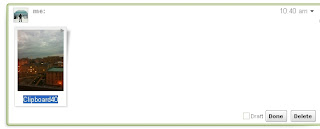
The image will appear in the "wave" using the file name of the image, you should change the displayed file name before clicking the 'done' button on the "wave".
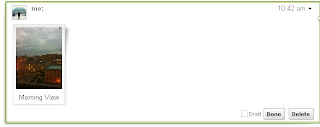
You can also add text to the "wave" created by the drag/drop of the image.

2) Make the contacts box bigger: Place your cursor on the right wall of the contact box, when it changes, left click and drag to the right. This will increase the contact box size.
This same process works for all of the Wave items (Navigation/Inbox/Open Wave(s)) on your Wave page.
It doesn't appear to save the layout sizes from session to session however.
3) When creating a "wave", an edit bar appears at the top of the "wave" and allows for links/files/text formatting

4) Playback button (shown at the top an open Wave) shows how the Wave progressed. Sort of like a slide show for the Wave.

5) The "Name" shown in the Contacts Box comes from your Google profile. So be sure to setup your profile using the Google account which you using with GoogleWave. If not setup, we see your email address as your "Name". The avatar picture displayed in the Contacts Box also comes from the Google profile. But for some reason doesn't always appear in everyone's Contact Box, even if you have a avatar picture setup in your Google profile.
(No image of the Contact Box here as I do not wish to display my contact's email addresses)
6) Google Wave has a number of Keyboard shortcuts:

(Click on the Photo above to view the keyboard shortcuts full-screen)
Note: Use the "Spacebar" to see new "waves" in an open Wave document, this can be a great time saver.
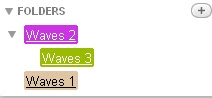
7) Creating Folders in Google Wave allows you to create categories for your Wave documents. This is also useful to clean the Google Wave Inbox of older Waves and file the Waves documents.
To move a Wave document to a Folder: click on a Wave document and dragdrop it to the Folder name.
Selecting the dropdown arrow to the right of the folder allows for a Color to be selected for the Folder / Delete Folder / Rename Folder.
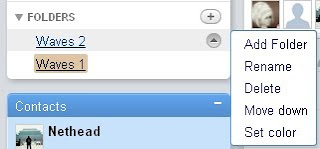
Selecting a color for the Folder will make it easier to see different Folders when looking at the Waves via "All"
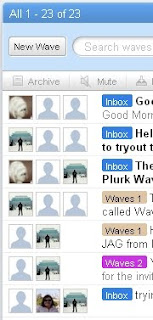
When deleting a Folder, it does not delete the Wave documents contained within the deleted Folder, but moves the Wave documents to "All".
You can also create folders inside folders.
8) CTRL-click on a Wave document will open it. You can open multiple Waves documents at once doing this. But, you need a Large Screen for this to be useful.
Once open, click on the bottom of the Wave "box" to resize the Wave.
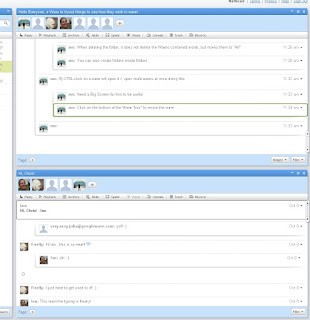
9) The Green Bar to the left of a "wave" reply shows it is new since the last time you read the Wave document, you can click on the green bar to 'mark' read.
10) When clicking on a Link in a "wave", it will open the link to a new page.
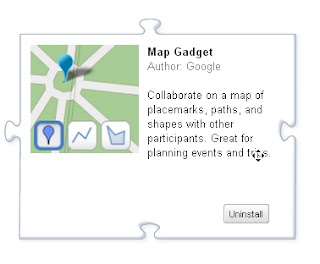
11) When u create a "wave", click on the red 'map' icon on the edit bar, it will add a map to your wave.

Note: If you do not see the icon, you may not have the Map Gadget installed. Review the Wave by Doctor Wave: "Extensions Gallery", which should be in your inbox. Scroll through this Wave and you will see different Gadgets you can install into to your Wave environment.
Useful video to watch Google Wave: 15 features
First, I would Highly Recommend installing and using Chrome or Chromium with Google Wave.
1) How to add Images to a Wave in Google Wave.
When using Chromium/Chrome, The first time you try to drag/drop an image into Google Wave, Google Gears addon will be autoinstalled. (if not already installed)
You can then drop images into Google Wave.
You drop an image onto a "wave" and Google Wave will auto create a reply "wave" for you, using the image.

The image will appear in the "wave" using the file name of the image, you should change the displayed file name before clicking the 'done' button on the "wave".

You can also add text to the "wave" created by the drag/drop of the image.

2) Make the contacts box bigger: Place your cursor on the right wall of the contact box, when it changes, left click and drag to the right. This will increase the contact box size.
This same process works for all of the Wave items (Navigation/Inbox/Open Wave(s)) on your Wave page.
It doesn't appear to save the layout sizes from session to session however.
3) When creating a "wave", an edit bar appears at the top of the "wave" and allows for links/files/text formatting

4) Playback button (shown at the top an open Wave) shows how the Wave progressed. Sort of like a slide show for the Wave.

5) The "Name" shown in the Contacts Box comes from your Google profile. So be sure to setup your profile using the Google account which you using with GoogleWave. If not setup, we see your email address as your "Name". The avatar picture displayed in the Contacts Box also comes from the Google profile. But for some reason doesn't always appear in everyone's Contact Box, even if you have a avatar picture setup in your Google profile.
(No image of the Contact Box here as I do not wish to display my contact's email addresses)
6) Google Wave has a number of Keyboard shortcuts:
(Click on the Photo above to view the keyboard shortcuts full-screen)
Note: Use the "Spacebar" to see new "waves" in an open Wave document, this can be a great time saver.
7) Creating Folders in Google Wave allows you to create categories for your Wave documents. This is also useful to clean the Google Wave Inbox of older Waves and file the Waves documents.
To move a Wave document to a Folder: click on a Wave document and dragdrop it to the Folder name.
Selecting the dropdown arrow to the right of the folder allows for a Color to be selected for the Folder / Delete Folder / Rename Folder.

Selecting a color for the Folder will make it easier to see different Folders when looking at the Waves via "All"

When deleting a Folder, it does not delete the Wave documents contained within the deleted Folder, but moves the Wave documents to "All".
You can also create folders inside folders.

8) CTRL-click on a Wave document will open it. You can open multiple Waves documents at once doing this. But, you need a Large Screen for this to be useful.
Once open, click on the bottom of the Wave "box" to resize the Wave.

9) The Green Bar to the left of a "wave" reply shows it is new since the last time you read the Wave document, you can click on the green bar to 'mark' read.
10) When clicking on a Link in a "wave", it will open the link to a new page.
11) When u create a "wave", click on the red 'map' icon on the edit bar, it will add a map to your wave.

Note: If you do not see the icon, you may not have the Map Gadget installed. Review the Wave by Doctor Wave: "Extensions Gallery", which should be in your inbox. Scroll through this Wave and you will see different Gadgets you can install into to your Wave environment.

Useful video to watch Google Wave: 15 features
Friday, April 10, 2009
adsweep - ad blocking for Chrome
"Enjoy an ad-free web browsing with AdSweep"
"AdSweep is a user javascript that defines CSS rules based on the web site you are visiting to hide elements of the page that show advertisements"
I installed into Chrome this past weekend, has been working very well.
A first step to making Chrome usable.
To download the latest release of Chrome(chromium), use this 'trick':
Thursday, February 05, 2009
Hint for an easy way to keep google chromium updated with the latest build
Chromium Home page
First go to this url:
http://build.chromium.org/buildbot/snapshots/chromium-rel-xp/LATEST
You'll see a single number displayed, for example:
9223
Remember this number.
Click on the url below and replace the xxxx with the number from above:
http://build.chromium.org/buildbot/snapshots/chromium-rel-xp/xxxxx
Paste the url into your address bar, change the xxxxx to the number you saw on the "LATEST" page from step #1.
Open the web page using the completed url and you'll see a list of files. You want to download the file called:
mini_installer.exe
After the installer runs, you'll have the latest update of chromium installed.
First go to this url:
http://build.chromium.org/buildbot/snapshots/chromium-rel-xp/LATEST
You'll see a single number displayed, for example:
9223
Remember this number.
Click on the url below and replace the xxxx with the number from above:
http://build.chromium.org/buildbot/snapshots/chromium-rel-xp/xxxxx
Paste the url into your address bar, change the xxxxx to the number you saw on the "LATEST" page from step #1.
Open the web page using the completed url and you'll see a list of files. You want to download the file called:
mini_installer.exe
After the installer runs, you'll have the latest update of chromium installed.
Sunday, September 07, 2008
Google Chrome: How to Change Google Chrome Theme on Windows Vista and Windows XP
Google Chrome Themes - themes for download
How to Change Google Chrome Theme on Windows Vista and Windows XP
1. Download a Google Chrome Theme
2. Extract the files from the downloaded archive
3. Go to the (Replacing USERNAME with your username)
If using Vista:
C:\Users\username\AppData\Local\Google\Chrome\Application\0.2.149.27\Themes
If using XP C:\Documents and Settings\username\LocalSettings\AppData\Google\Chrome\Application\0.2.149.27\Themes
*Note: If you install an update to Chrome (for example "0.2.149.29") update the "Themes" folder under the latest release your using.
4. Backup your existing default.dll file; example: rename default.dll to default.org
5. Copy over Default.DLL from your extracted file into the Themes folder
6. Open up Google Chrome, You have a new theme installed.
How to Change Google Chrome Theme on Windows Vista and Windows XP
1. Download a Google Chrome Theme
2. Extract the files from the downloaded archive
3. Go to the (Replacing USERNAME with your username)
If using Vista:
C:\Users\username\AppData\Local\Google\Chrome\Application\0.2.149.27\Themes
If using XP C:\Documents and Settings\username\LocalSettings\AppData\Google\Chrome\Application\0.2.149.27\Themes
*Note: If you install an update to Chrome (for example "0.2.149.29") update the "Themes" folder under the latest release your using.
4. Backup your existing default.dll file; example: rename default.dll to default.org
5. Copy over Default.DLL from your extracted file into the Themes folder
6. Open up Google Chrome, You have a new theme installed.
Google Chrome: Google Chrome Xchrome Theme Manager
Google Chrome Xchrome Theme Manager - forum post/download
Taken from the post:
Install Instructions:
1) Download the .zip file.
2) Extract the files to a folder
3) Run Xchrome.exe (it adds some entries to the registry for Paths to Xchrome files)
4) Execute any theme.exe built within Xchromes theme builder (Xchrome doesn’t need to be running)
Please note that Xchrome Theme Manager uses certain process like file copying, registry editing etc, which makes Antivirus to believe it as Virus.
Xchrome is still in beta stages hence there is no error handling is done, many new features are going to get added in future.
List of features of Xchrome Google Theme Manager
- Automates the Installation of Google Chrome themes
- One place to download and install Google Chrome themes
- Lets you to Edit and build Google Chrome Themes
- List all Google Chrome installed Theme with preview and theme author details
- Theme Installer makes Chrome theme installation one single step process
- Theme Maker to create your own custom Google Chrome Themes
Taken from the post:
Install Instructions:
1) Download the .zip file.
2) Extract the files to a folder
3) Run Xchrome.exe (it adds some entries to the registry for Paths to Xchrome files)
4) Execute any theme.exe built within Xchromes theme builder (Xchrome doesn’t need to be running)
Please note that Xchrome Theme Manager uses certain process like file copying, registry editing etc, which makes Antivirus to believe it as Virus.
Xchrome is still in beta stages hence there is no error handling is done, many new features are going to get added in future.
List of features of Xchrome Google Theme Manager
- Automates the Installation of Google Chrome themes
- One place to download and install Google Chrome themes
- Lets you to Edit and build Google Chrome Themes
- List all Google Chrome installed Theme with preview and theme author details
- Theme Installer makes Chrome theme installation one single step process
- Theme Maker to create your own custom Google Chrome Themes
Google Chrome: Google Chrome Anonymizer
Google Chrome Anonymizer - (Look for the "Download:" link)
Google Chrome Anonymizer is a tool that has been specifically designed to remove the client id from the Local State file so that the submitted data cannot be used to identify a user over several surfing sessions.
Google Chrome Anonymizer can be started from any location on the hard drive and alters the Local State file directly before starting Google Chrome afterwards. This means that no client id is transferred to Google when using Google Chrome.
Google Chrome Anonymizer is a tool that has been specifically designed to remove the client id from the Local State file so that the submitted data cannot be used to identify a user over several surfing sessions.
Google Chrome Anonymizer can be started from any location on the hard drive and alters the Local State file directly before starting Google Chrome afterwards. This means that no client id is transferred to Google when using Google Chrome.
Google Chrome: How to "Manage" Bookmarks
How to Edit/Delete/Open Bookmarks:
Click on the "Other bookmarks" folder icon in the upper right corner
Then you can right-click the bookmark you wish to "edit", "delete", "Add folder", and other options.
*Note: If you do not see the "Other bookmarks" folder icon, Click on the wrench in the upper right corner, then Click "Always show bookmark bar. You will see the bookmark toolbar.
Google Chrome: How to enable Home Button
Google Chrome how to enable Home Button:
1) Click on the wrench in the upper right corner
2) Click on Options
3) Check the box that says "Show Home button on the toolbar".
Google Chrome: Block Ads with Privoxy
Good way to Block ads in Google Chrome:
Privoxy is a small web proxy that runs locally.
It has the ability to ads, banners, pop-ups and other obnoxious Internet junk.
1. Download Privoxy
2. Install it
3. Setup Google chrome’s proxy options as follows:
Click on the wrench in the upper right corner, then click on Options->Under the hood->Change proxy settings->Lan Settings
Check the box next to “Use a proxy server for your LAN”
Then click on the "Advanced" Button
Privoxy is a small web proxy that runs locally.
It has the ability to ads, banners, pop-ups and other obnoxious Internet junk.
1. Download Privoxy
2. Install it
3. Setup Google chrome’s proxy options as follows:
Click on the wrench in the upper right corner, then click on Options->Under the hood->Change proxy settings->Lan Settings
Check the box next to “Use a proxy server for your LAN”
Then click on the "Advanced" Button
Add proxy address 127.0.0.1; port 8118 for http and secure.
Privoxy Quickstart
Privoxy F.A.Q.
Privoxy Quickstart
Privoxy User Manual
*Note: This will set a proxy for IE also. If you already have a proxy setup, you will not be able to use this.
Privoxy Quickstart
Privoxy F.A.Q.
Privoxy Quickstart
Privoxy User Manual
*Note: This will set a proxy for IE also. If you already have a proxy setup, you will not be able to use this.
Google Chrome: Open Source Chromium
Chromium Home page
Chromium Builds - They seem to be putting them out a few a day
Good Tool to get new builds:
Chromium Builds - They seem to be putting them out a few a day
Good Tool to get new builds:
Google Chrome: Hidden Pages
Google Chrome Hidden Pages
type the following into the "Address bar" and see some fun information
1) about:network
2) about:stats
3) about:cache
4) about:objects
5) about:plugins
6) about:dns
7) about:version
8) about:memory
9) about:crash
10) about:ipc
11) about:histograms
12) about:histograms/Loop
13) about:hang
14) about:shorthang
15) Easter egg: about:internets
type the following into the "Address bar" and see some fun information
1) about:network
2) about:stats
3) about:cache
4) about:objects
5) about:plugins
6) about:dns
7) about:version
8) about:memory
9) about:crash
10) about:ipc
11) about:histograms
12) about:histograms/Loop
13) about:hang
14) about:shorthang
15) Easter egg: about:internets
Google Chrome: How to disable JavaScript in Chrome
Launch Google Chrome from Start/Run with the parameter -disable-javascript.
You can add this to the Google Chrome shortcut.
For example, in Vista:
C:\Users\%username%\AppData\Local\Google\Chrome\Application\chrome.exe -disable-javascript
For example, in Windows XP:
"C:\Documents and Settings\%username%\Local Settings\Application Data\Google\Chrome" -disable-javascript
Other parameters:
-disable-images
-disable-java
-disable-plugins
-disable-popup-blocking
-start-maximized
You can add this to the Google Chrome shortcut.
For example, in Vista:
C:\Users\%username%\AppData\Local\Google\Chrome\Application\chrome.exe -disable-javascript
For example, in Windows XP:
"C:\Documents and Settings\%username%\Local Settings\Application Data\Google\Chrome" -disable-javascript
Other parameters:
-disable-images
-disable-java
-disable-plugins
-disable-popup-blocking
-start-maximized
Google Chrome: Add a Print Button to the Bookmarks Bar
To add a "Print Button" to the Bookmarks Bar, do the following:
Right-click the Bookmarks bar and select Add Page.
In the Name textbox, input the word Print.
In the URL textbox, input the following code(copy/paste it):
javascript:window.print()
Right-click the Bookmarks bar and select Add Page.
In the Name textbox, input the word Print.
In the URL textbox, input the following code(copy/paste it):
javascript:window.print()
Google Chrome: Howto Stumble without Stumbleupon Toolbar
Stumble Webpages Without Downloading Stumbleupon Toolbar
This page shows how to add some links to your your Google Chrome bookmark bar and you can then update Stubleupon
This page shows how to add some links to your your Google Chrome bookmark bar and you can then update Stubleupon
Google Chrome Offline Installer
Offline Installer from GOOGLE Server
The standard install gives you a small file and then connects to Google to get the rest. With this installer, you get it all at once.
Saturday, September 06, 2008
Google Chrome Keyboard Shortcuts
Window and tab shortcuts
Ctrl+N Open a new window
Ctrl+Shift+N Open a new window in incognito mode
Press Ctrl, and click a link Open link in a new tab
Press Shift, and click a link Open link in a new window
Alt+F4 Close current window
Ctrl+T Open a new tab
Ctrl+Shift+T Reopen the last tab you've closed. Google Chrome remembers the last 10 tabs you've closed.
Drag link to tab Open link in specified tab
Drag link to space between tabs Open link in a new tab in the specified position on the tab strip
Ctrl+1 through Ctrl+8 Switch to the tab at the specified position number. The number you press represents a position on the tab strip.
Ctrl+9 Switch to the last tab
Ctrl+Tab or Ctrl+PgDown Switch to the next tab
Ctrl+Shift+Tab or Ctrl+PgUp Switch to the previous tab
Ctrl+W or Ctrl+F4 Close current tab or pop-up
Alt+Home Open your homepage
Ctrl+O, then select file Open a file from your computer in Google Chrome
Address bar shortcuts
Do one of the following actions in the address bar:
Type a search term Perform a search using your default search engine
Type the part of the web address that's between 'www.' and '.com', then press Ctrl+Enter Add www.and .com to your input in the address bar and open the web address
Type a search engine keyword or URL, press Tab, then type a search term Perform a search using the search engine associated with the keyword or the URL. Google Chrome prompts you to press Tab if it recognizes the search engine you're trying to use.
F6 or Ctrl+L or Alt+D Highlight content in the web address area
Type a web address, then press Alt+Enter Open your web address in a new tab
Shortcuts to open Google Chrome features
Ctrl+B Toggle bookmarks bar on and off
Ctrl+H View the History page
Ctrl+J View the Downloads page
Shift+Escape View the Task manager
Webpage shortcuts
Ctrl+P Print your current page
F5 Reload current page
Esc Stop page loading
Ctrl+F5 or Shift+F5 Reload current page, ignoring cached content
Press Alt, and click a link Download link
Ctrl+F Open find-in-page box
Ctrl+G or F3 Find next match for your input in the find-in-page box
Ctrl+Shift+G or Shift+F3 Find previous match for your input in the find-in-page box
Ctrl+U View source
Drag link to bookmarks bar Bookmark the link
Ctrl+D Bookmark your current webpage
Ctrl++ Make text larger
Ctrl+- Make text smaller
Ctrl+0 Return to normal text size
Text shortcuts
Highlight content, then press Ctrl+C Copy content to the clipboard
Place your cursor in a text field, then press Ctrl+V or Shift+Insert Paste current content from the clipboard
Place your cursor in a text field, then press Ctrl+Shift+V Paste current content from the clipboard without formatting
Highlight content in a text field, then press Ctrl+X or Shift+Delete Delete the content and copy it to the clipboard
Ctrl+N Open a new window
Ctrl+Shift+N Open a new window in incognito mode
Press Ctrl, and click a link Open link in a new tab
Press Shift, and click a link Open link in a new window
Alt+F4 Close current window
Ctrl+T Open a new tab
Ctrl+Shift+T Reopen the last tab you've closed. Google Chrome remembers the last 10 tabs you've closed.
Drag link to tab Open link in specified tab
Drag link to space between tabs Open link in a new tab in the specified position on the tab strip
Ctrl+1 through Ctrl+8 Switch to the tab at the specified position number. The number you press represents a position on the tab strip.
Ctrl+9 Switch to the last tab
Ctrl+Tab or Ctrl+PgDown Switch to the next tab
Ctrl+Shift+Tab or Ctrl+PgUp Switch to the previous tab
Ctrl+W or Ctrl+F4 Close current tab or pop-up
Alt+Home Open your homepage
Ctrl+O, then select file Open a file from your computer in Google Chrome
Address bar shortcuts
Do one of the following actions in the address bar:
Type a search term Perform a search using your default search engine
Type the part of the web address that's between 'www.' and '.com', then press Ctrl+Enter Add www.and .com to your input in the address bar and open the web address
Type a search engine keyword or URL, press Tab, then type a search term Perform a search using the search engine associated with the keyword or the URL. Google Chrome prompts you to press Tab if it recognizes the search engine you're trying to use.
F6 or Ctrl+L or Alt+D Highlight content in the web address area
Type a web address, then press Alt+Enter Open your web address in a new tab
Shortcuts to open Google Chrome features
Ctrl+B Toggle bookmarks bar on and off
Ctrl+H View the History page
Ctrl+J View the Downloads page
Shift+Escape View the Task manager
Webpage shortcuts
Ctrl+P Print your current page
F5 Reload current page
Esc Stop page loading
Ctrl+F5 or Shift+F5 Reload current page, ignoring cached content
Press Alt, and click a link Download link
Ctrl+F Open find-in-page box
Ctrl+G or F3 Find next match for your input in the find-in-page box
Ctrl+Shift+G or Shift+F3 Find previous match for your input in the find-in-page box
Ctrl+U View source
Drag link to bookmarks bar Bookmark the link
Ctrl+D Bookmark your current webpage
Ctrl++ Make text larger
Ctrl+- Make text smaller
Ctrl+0 Return to normal text size
Text shortcuts
Highlight content, then press Ctrl+C Copy content to the clipboard
Place your cursor in a text field, then press Ctrl+V or Shift+Insert Paste current content from the clipboard
Place your cursor in a text field, then press Ctrl+Shift+V Paste current content from the clipboard without formatting
Highlight content in a text field, then press Ctrl+X or Shift+Delete Delete the content and copy it to the clipboard
More Shortcuts
Backspace, or press Alt and the left arrow togetherGo to the previous page in your browsing history for the tab
Shift+Backspace, or press Alt and the right arrow togetherGo to the next page in your browsing history for the tab
Ctrl+K or Ctrl+E Places a '?' in the address bar. Type a search term after the '?' to perform a search using your default search engine.
Place your cursor in the address bar, then press Ctrl and the left arrow together Jump to the previous word in the address bar
Place your cursor in the address bar, then press Ctrl and the right arrow togetherJump to the next word in the address bar
Place your cursor in the address bar, then press Ctrl+BackspaceDelete the previous word in the address bar
Space bar Scroll down the web pageHome Go to the top of the pageEnd Go to the bottom of the page
Shift+Backspace, or press Alt and the right arrow togetherGo to the next page in your browsing history for the tab
Ctrl+K or Ctrl+E Places a '?' in the address bar. Type a search term after the '?' to perform a search using your default search engine.
Place your cursor in the address bar, then press Ctrl and the left arrow together Jump to the previous word in the address bar
Place your cursor in the address bar, then press Ctrl and the right arrow togetherJump to the next word in the address bar
Place your cursor in the address bar, then press Ctrl+BackspaceDelete the previous word in the address bar
Space bar Scroll down the web pageHome Go to the top of the pageEnd Go to the bottom of the page
Subscribe to:
Posts (Atom)